JB - done some research - you could try this:
You can do it using Paint - which I hope is the same in all versions of Windows.
Find a photograph you want to change the size of, right click and select Open With and Paint
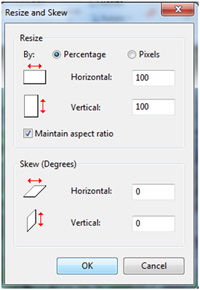
On the top toolbar you should see Resize, select it and you will get this:
- Reducing1.jpg (43.77 KiB) Viewed 5133 times
Change the button selection to Pixels, put 640 in the Horizontal box, make sure the tick stays against 'Maintain aspect ratio' and click OK.
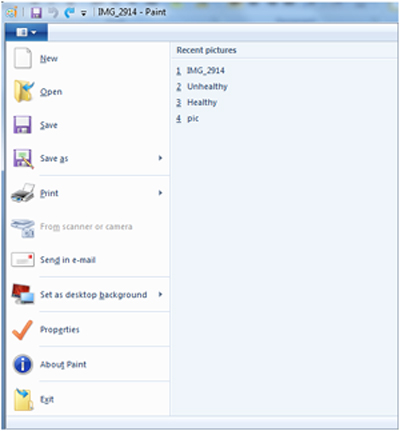
To save the file as a new name so you don't spoil the resolution of your photograph click the little button with the arrow almost top left and you'll get this:
- Reducing2.jpg (62.25 KiB) Viewed 5133 times
Select 'Save As' then the jpeg file type and it should take you to where your file is stored and display its name. I usually just add _R to the end of the name to show I have reduced it then when I am looking for files later they come up next to each other.
Then back to my original notes, repeated here so all in one place.
When creating a new reply or posting
Click 'Choose File' button and find the photo on your machine and double click, the filename will appear beside the button.
Click 'Add the file' button and I little window will open showing it is transferring the file.
That is basically all you have to do, if you click 'Preview' you will see the photo is included in your post.
If you want to have control over positioning amongst your text, get the cursor to where you want it then click 'Place inline' and the filename will appear with 'attachment' each side of it.
Good luck!

 I just cant get the hang of it no matter how I try